Ohme Park & Charge
The Ohme Park & Charge web app lets you start and stop charging sessions, pay for your charge, and view your charging history, all from your phone or browser with no app download needed.
This guide walks you through everything you need to get up and running, from setting up your account to starting your first session.
Jump to:
Getting started
Charging sessions and payment
Getting started
Step 1
Access to the web app
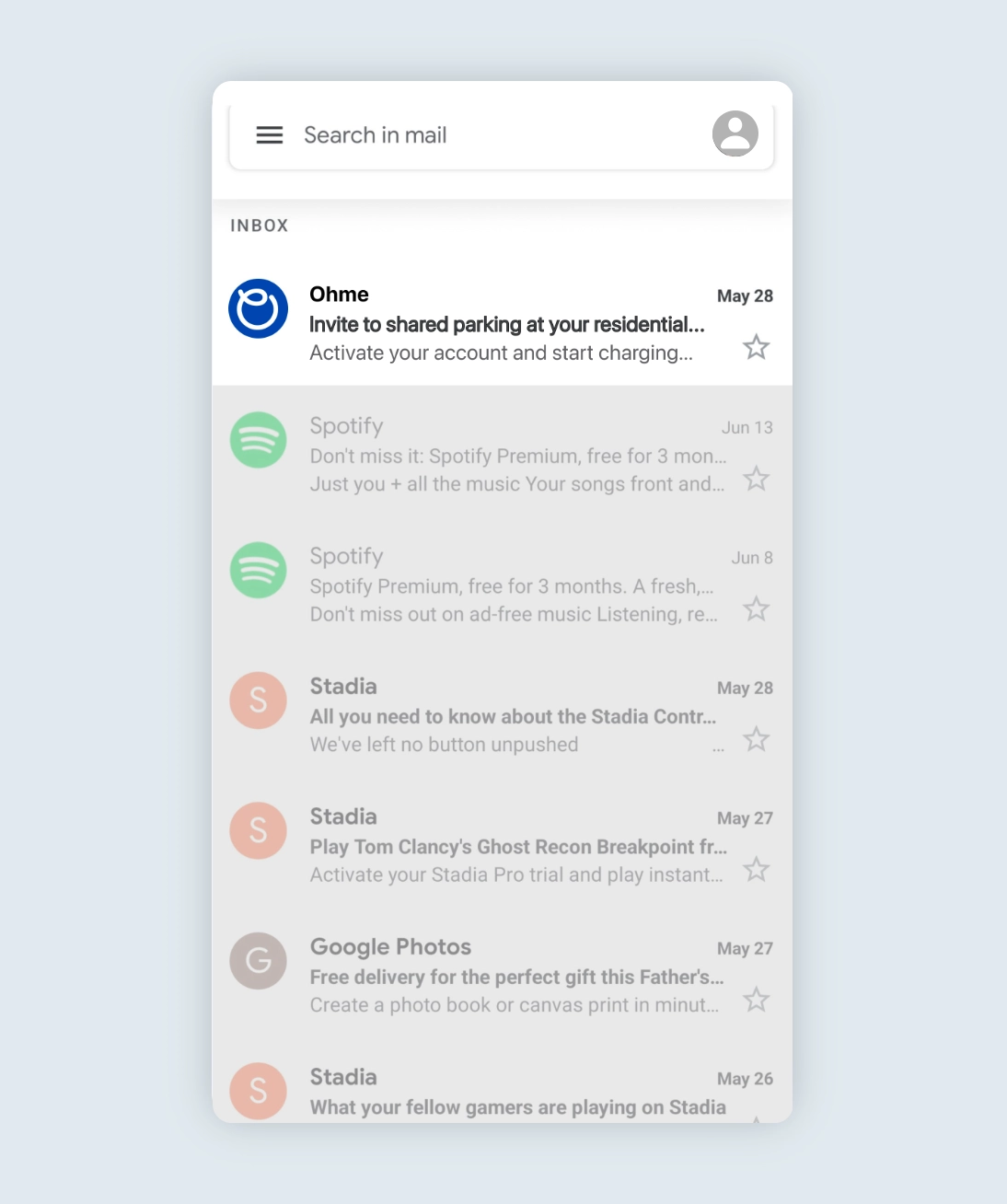
Open the email from Ohme asking you to set up your account. Click on the link provided in your invitation email to get access to the web app.

To access the Park & Charge web app in the future, save this URL as a bookmark in your browser or add it to your phone’s home screen.
Step 2
Create an account
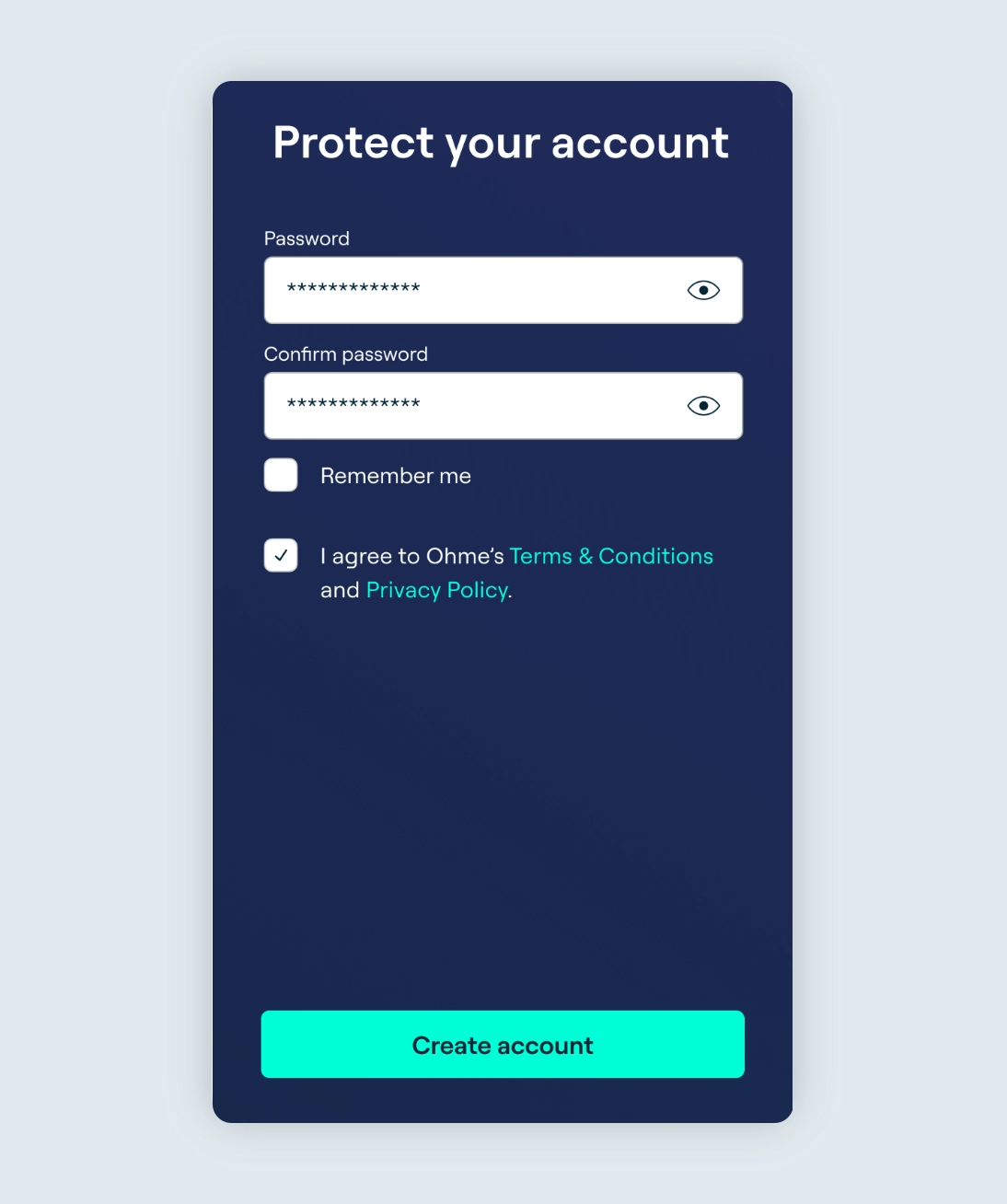
Fill in your details and create a password to secure your account.
Step 3
Selecting your vehicle brand
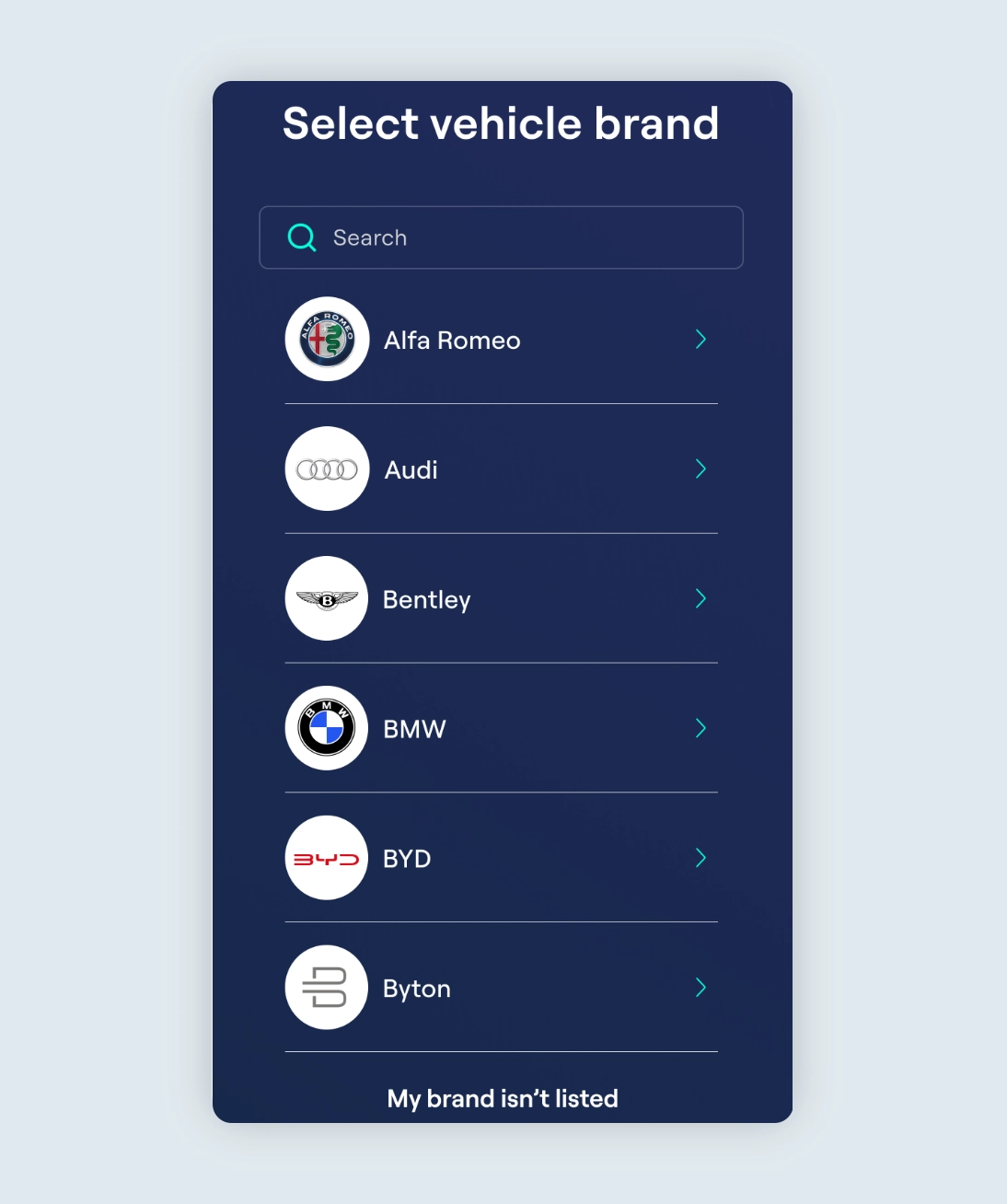
Search for and select the brand of your vehicle from the list provided.
Step 4
Selecting your vehicle model
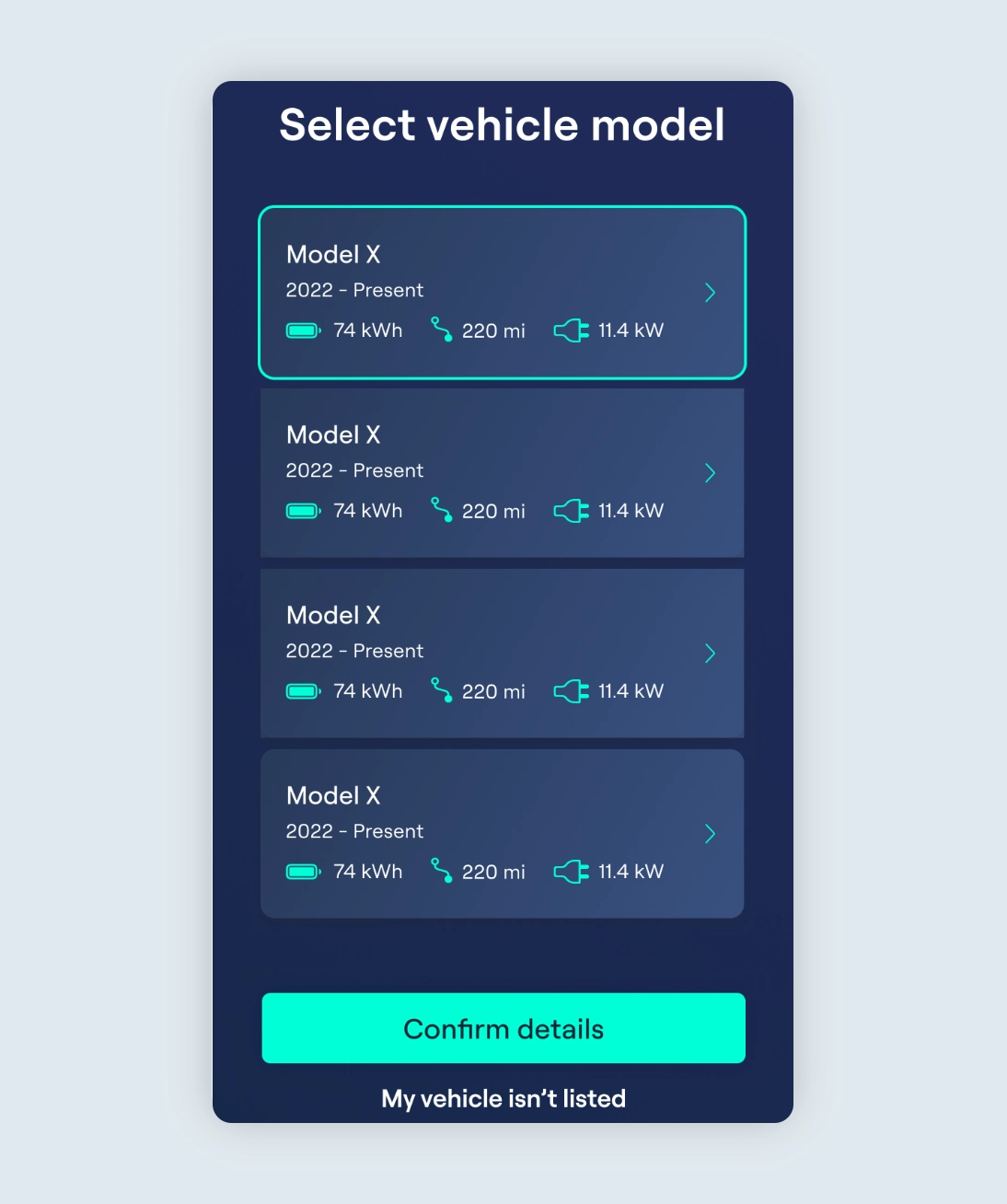
Find and select the model of the vehicle you have. You will then be asked to enter the total size of your cars battery. You will be able to find this information in the manufacturers specifications.
Step 5
Linking to charger
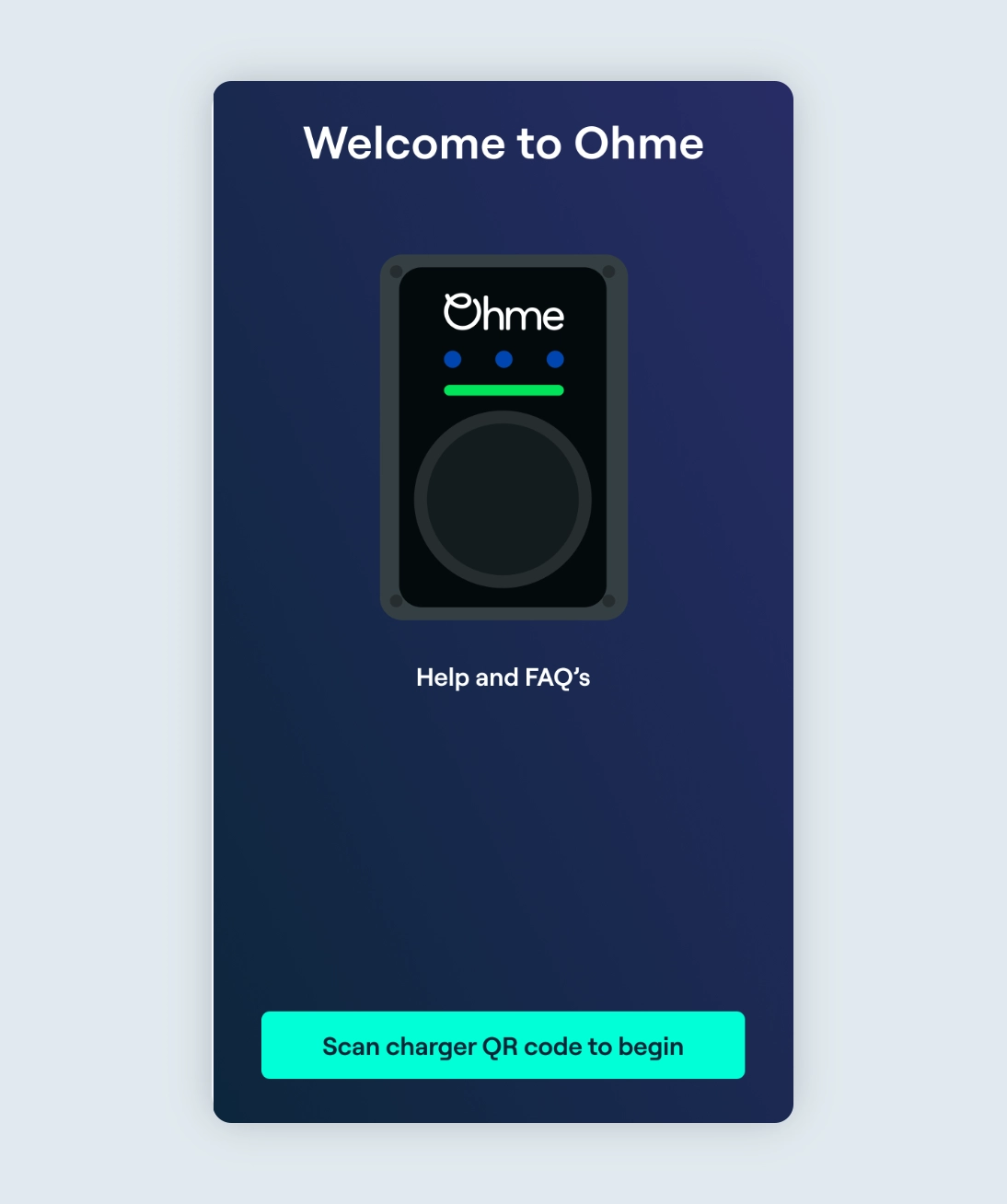
Click the “Scan charger QR code to begin” button to start.
Step 6
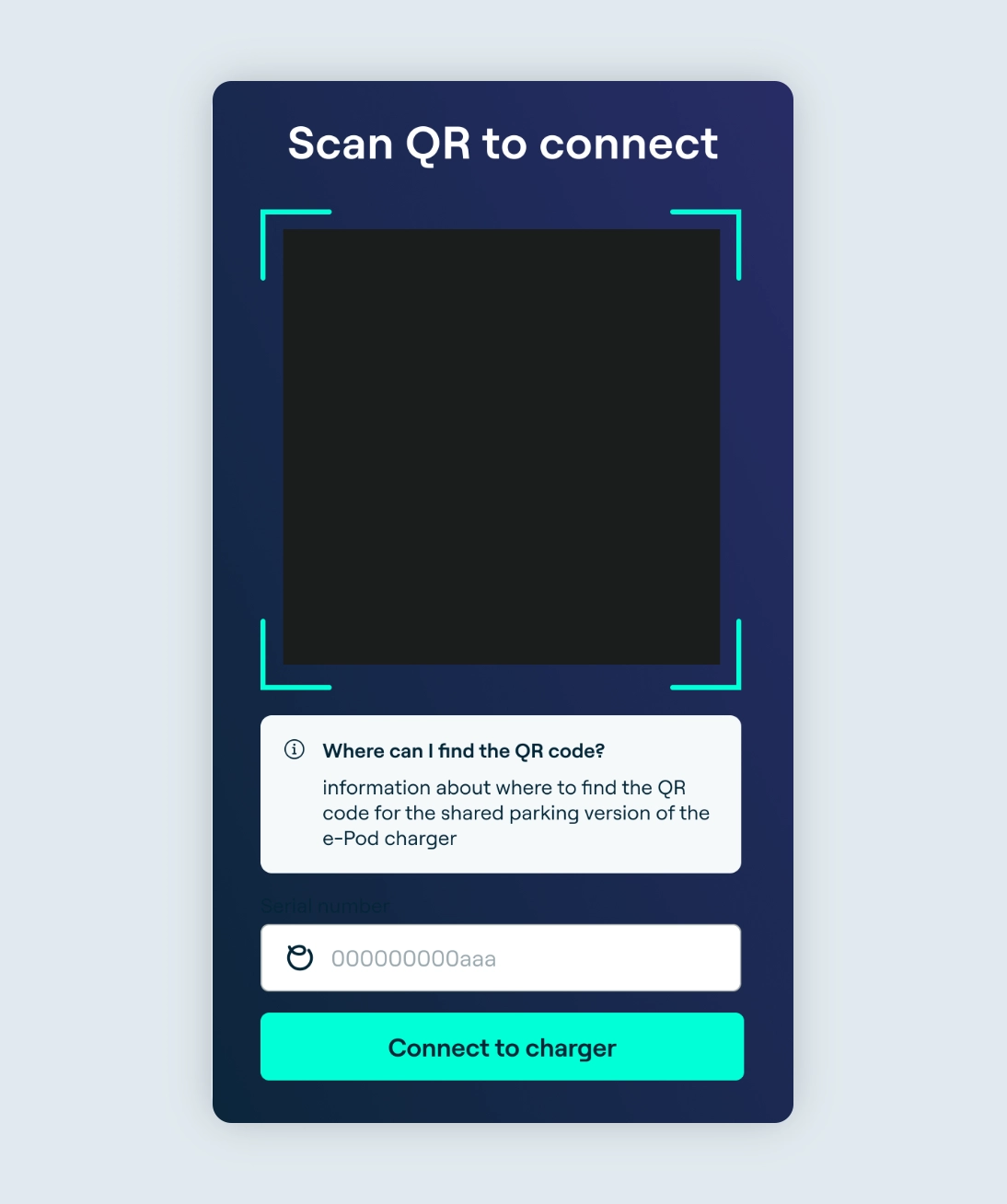
Scan QR code
Finally, scan the QR code on the charger. This is usually situated on the side of the charging unit. If the QR code is not available, you can enter the serial number manually. This is situated underneath the charging unit.
Charging sessions and payment
Step 1
Smart charging
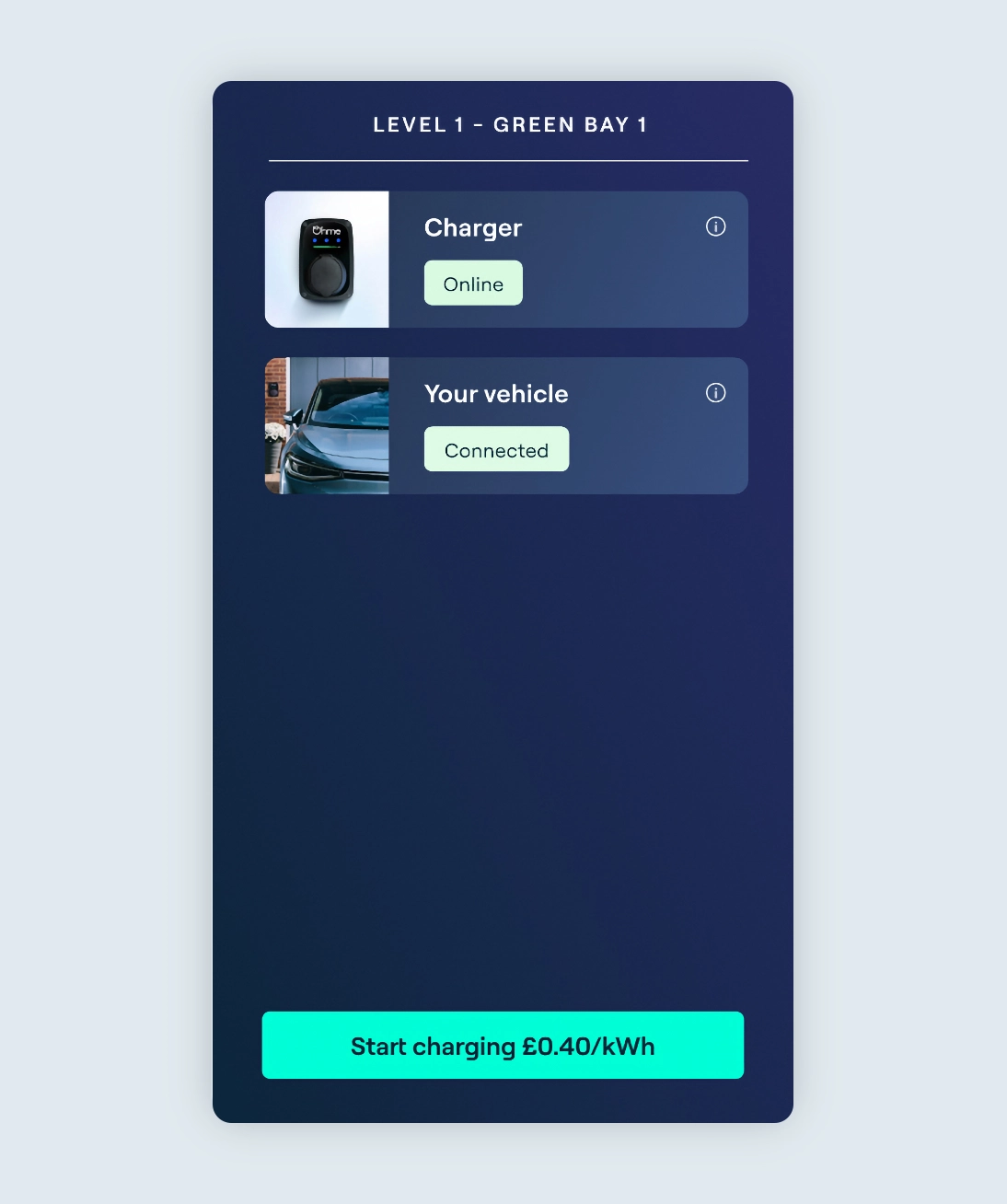
Once you have set up your account and linked the charging point to your app, plug the charging cable into your vehicle (you will see the word “connected” appear in the “Your vehicle” section) and click the “Start charging” button.
Note: £0.40/kWh is used as an example, the figure shown may differ.
Step 2
Payment details
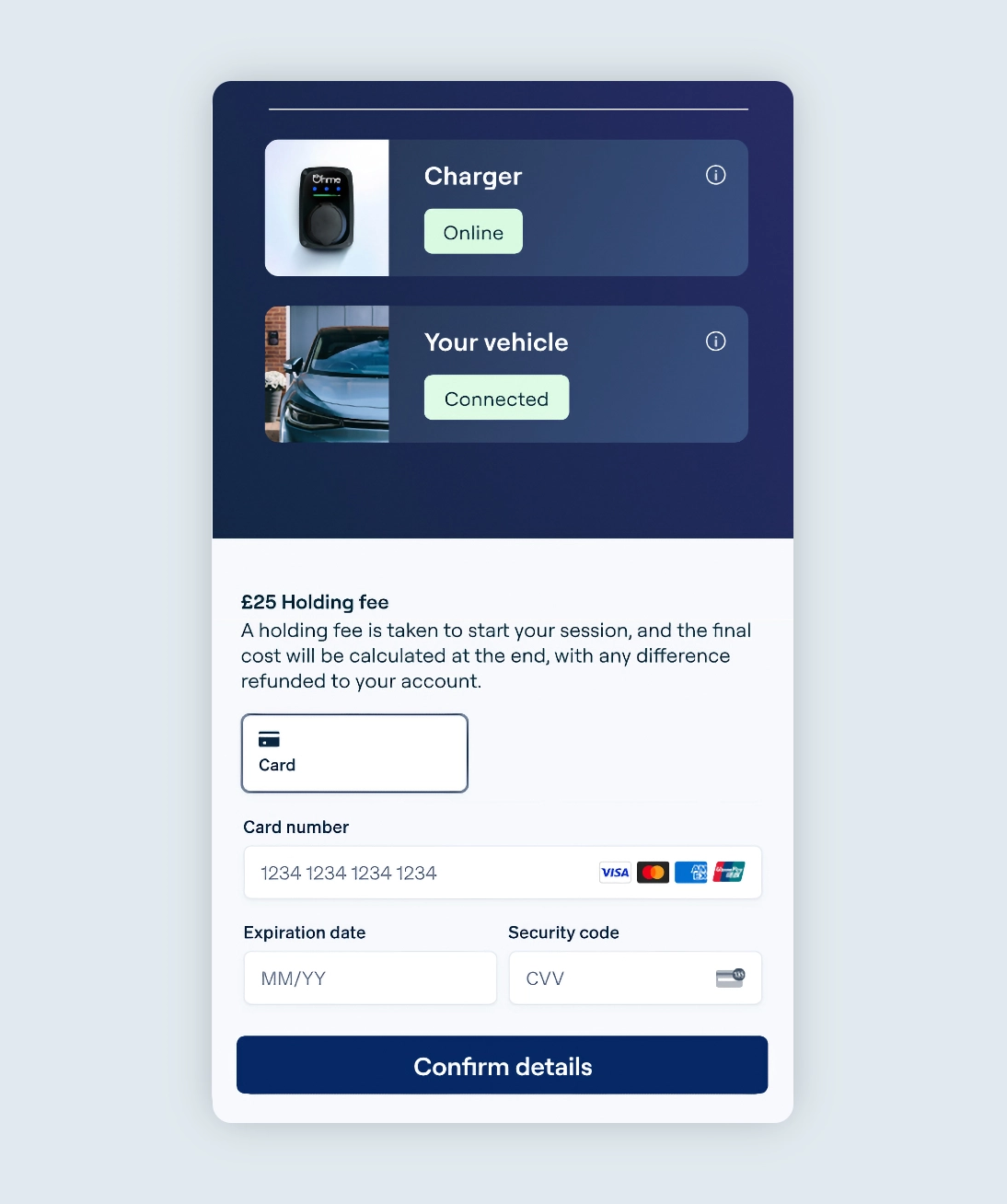
Put in your card payment details and click “Confirm”.
Please note: A holding fee is taken to start your session, and the final cost will be calculated at the end, with any difference refunded to your account.
Step 3
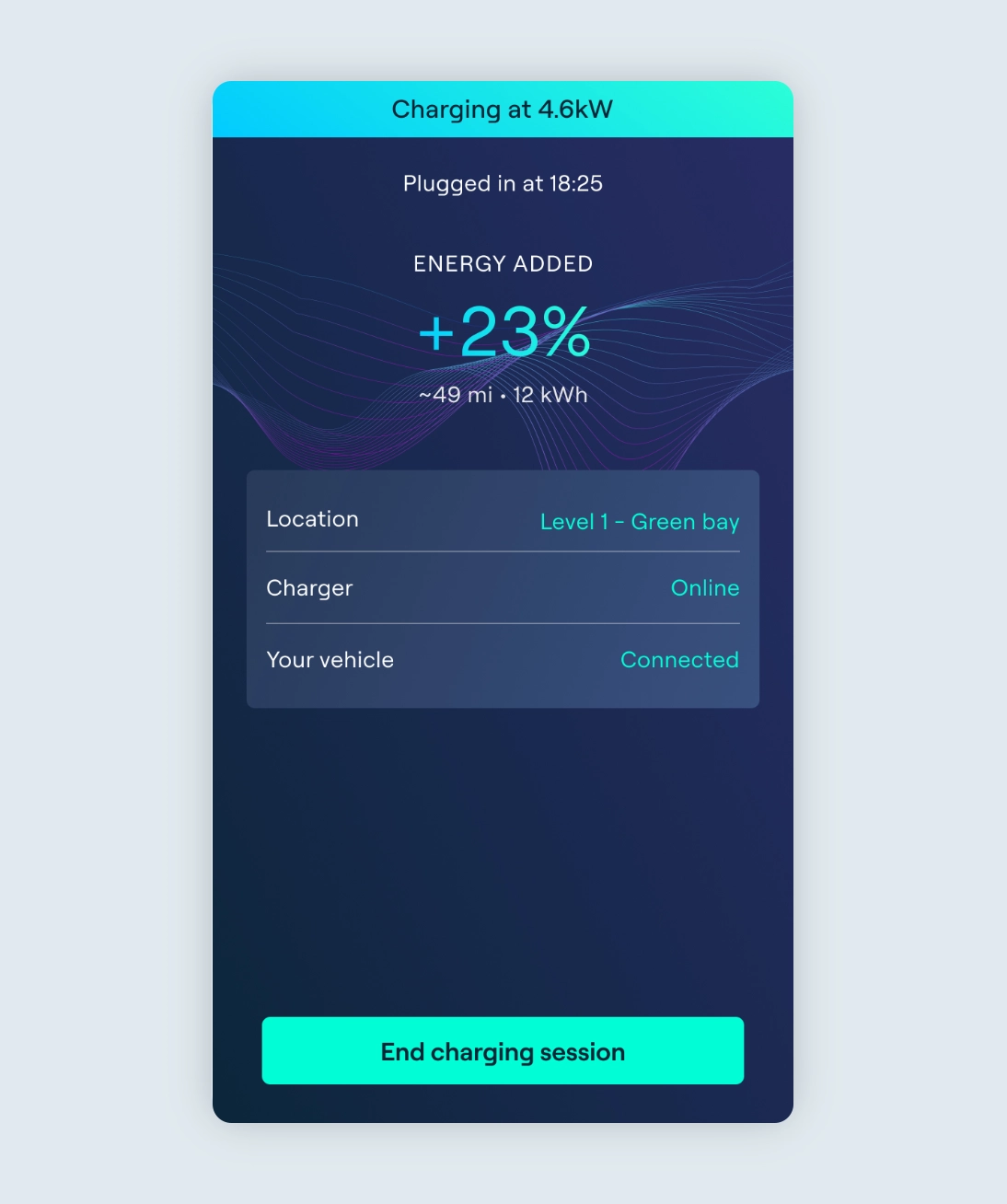
Active charging session
You can keep an eye on how much your car is charging directly through the web app.
To end your charging session, simply click the “End charging session” button.
Step 4
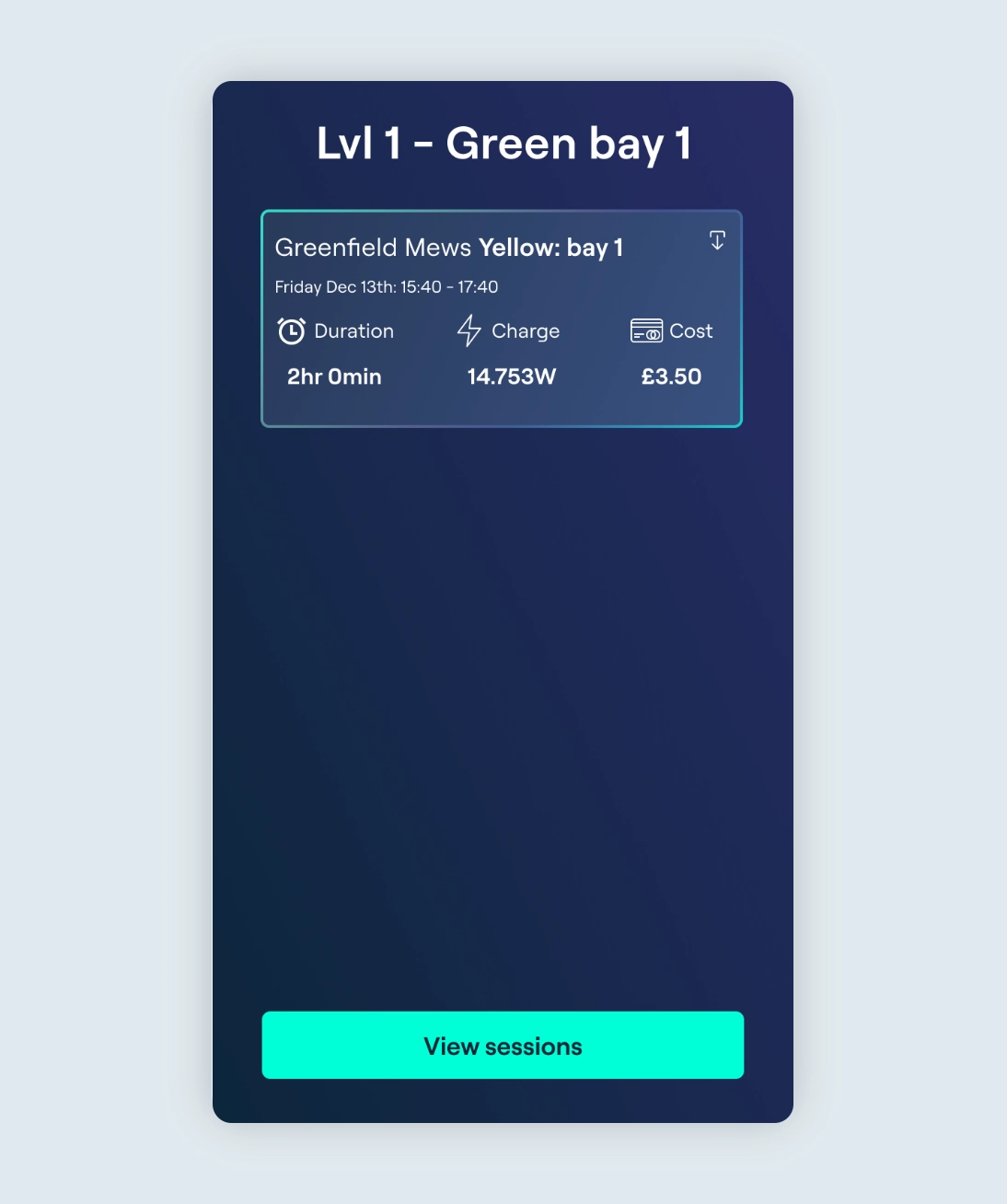
View charging sessions
Once a charging session is complete, you can view information such as the duration of your charge session, the amount of charge added to your vehicle and the final cost of your session.
Thanks for your feedback!