How can multiple people use my charger?
Only one Ohme account can be linked to a charger. This means the charger cannot support several separate accounts at once. Anyone who needs access must sign in using the same Ohme account details.
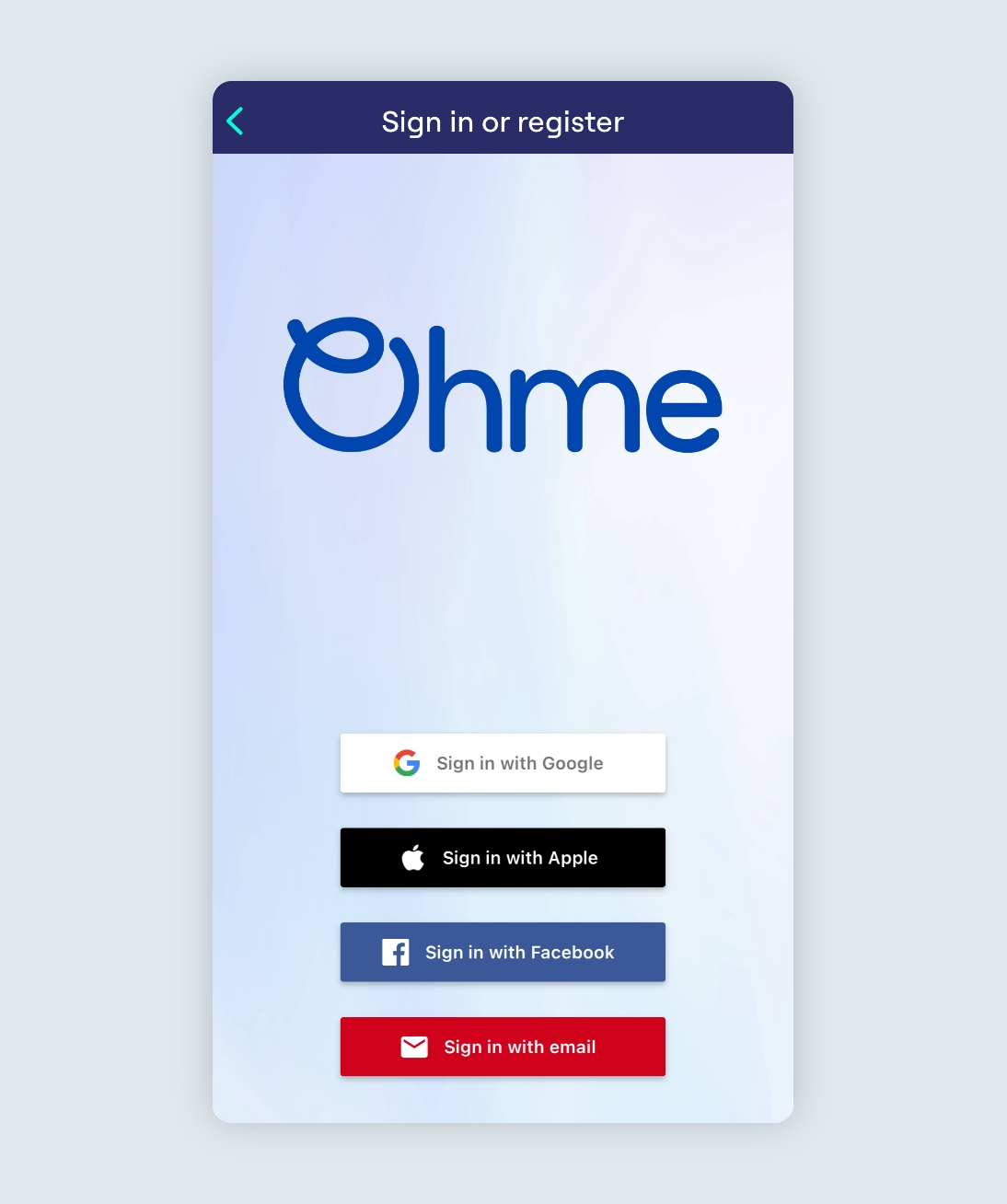
There are four ways to create an Ohme account. Three use an existing login from another service. One creates a unique Ohme email and password.
Account types
You can choose one of the following when you create an account:
- Google login
- Apple login
- Facebook login
These options link your Ohme account to an existing Google, Facebook, or Apple ID. If you already use one of these services, you can sign in quickly without creating a new password for Ohme.
- Email and password
This creates a unique Ohme account. Enter an email address and password you wish to use. You will receive a link via email to verify the email address.
Sharing access
Accounts created with an email and password can be shared with anyone who needs to control or monitor charging.
Using a Google, Facebook, or Apple login is different, since sharing those details would also give access to your entire Google, Facebook, or Apple account, not just the Ohme app.
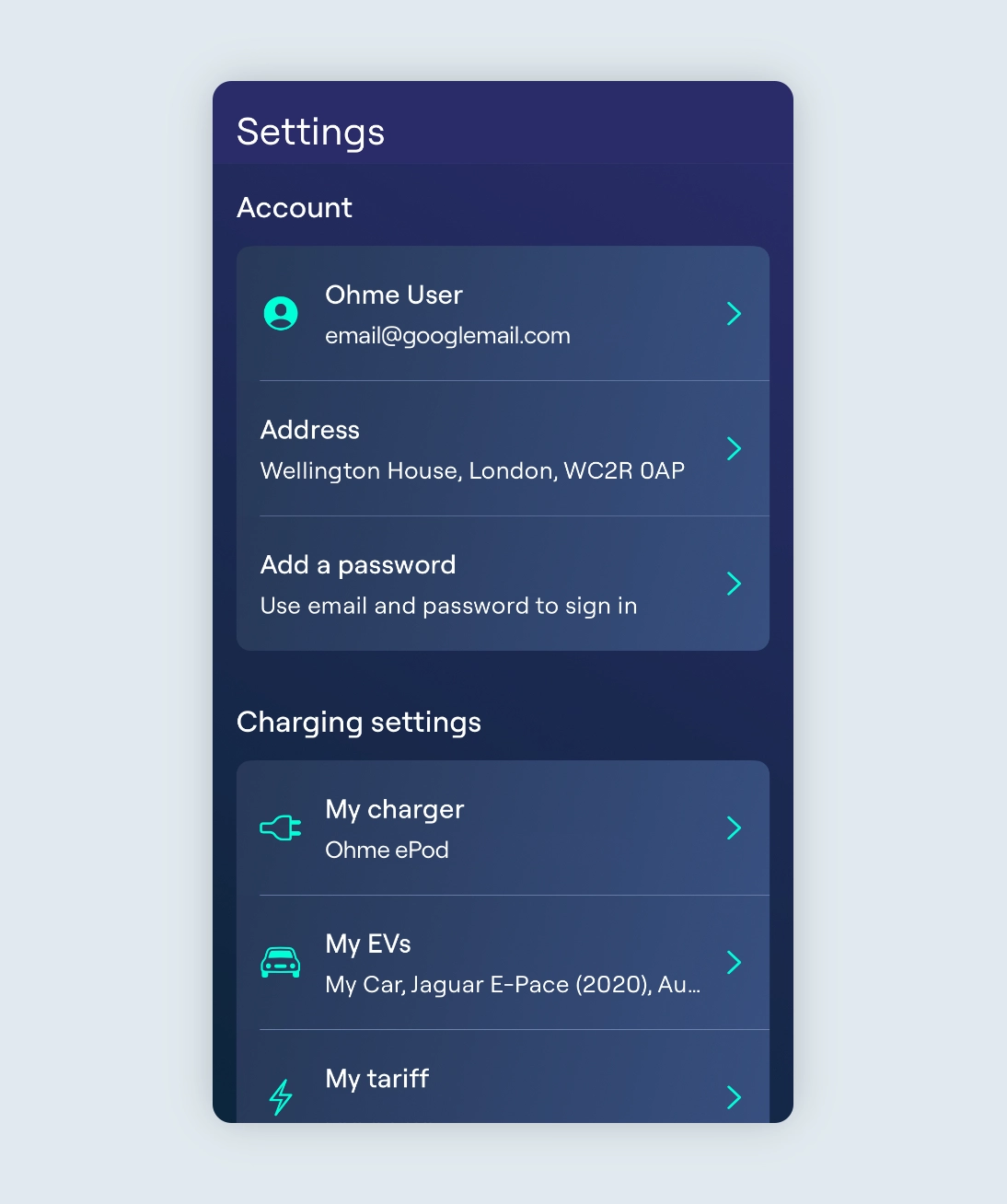
To avoid that, add a password in the Ohme app. This changes the account to a ‘Sign in with email’ login that is safe to share, and you can make the change without creating a new account.
Add a password
- Go to Settings
- Tap Add a password
- Enter the password you wish to use
When you add a password, your account changes into a ‘Sign in with email’ login. The email shown at the top of the Settings screen, underneath your name, becomes the email you use to sign in. Anyone who needs access will use that email and the new password you created.
Check that the email shown in Settings is the one you want to use. If it is not, the only way to change it is to disconnect or delete the current Ohme account and create a new one with the email you prefer. Keep this in mind before converting your account. See How to disconnect my account from my Ohme charger for more information.

If you’ve integrated with a smart tariff, such as Octopus Energy’s Intelligent Octopus Go, it’s essential to disconnect from this tariff before continuing with an account deletion so that you can re-integrate the tariff with your new Ohme account. To disconnect, refer to your energy supplier’s app or contact their support team directly.
Thanks for your feedback!