How to use the Ohme app widget (Android)
How does it work?
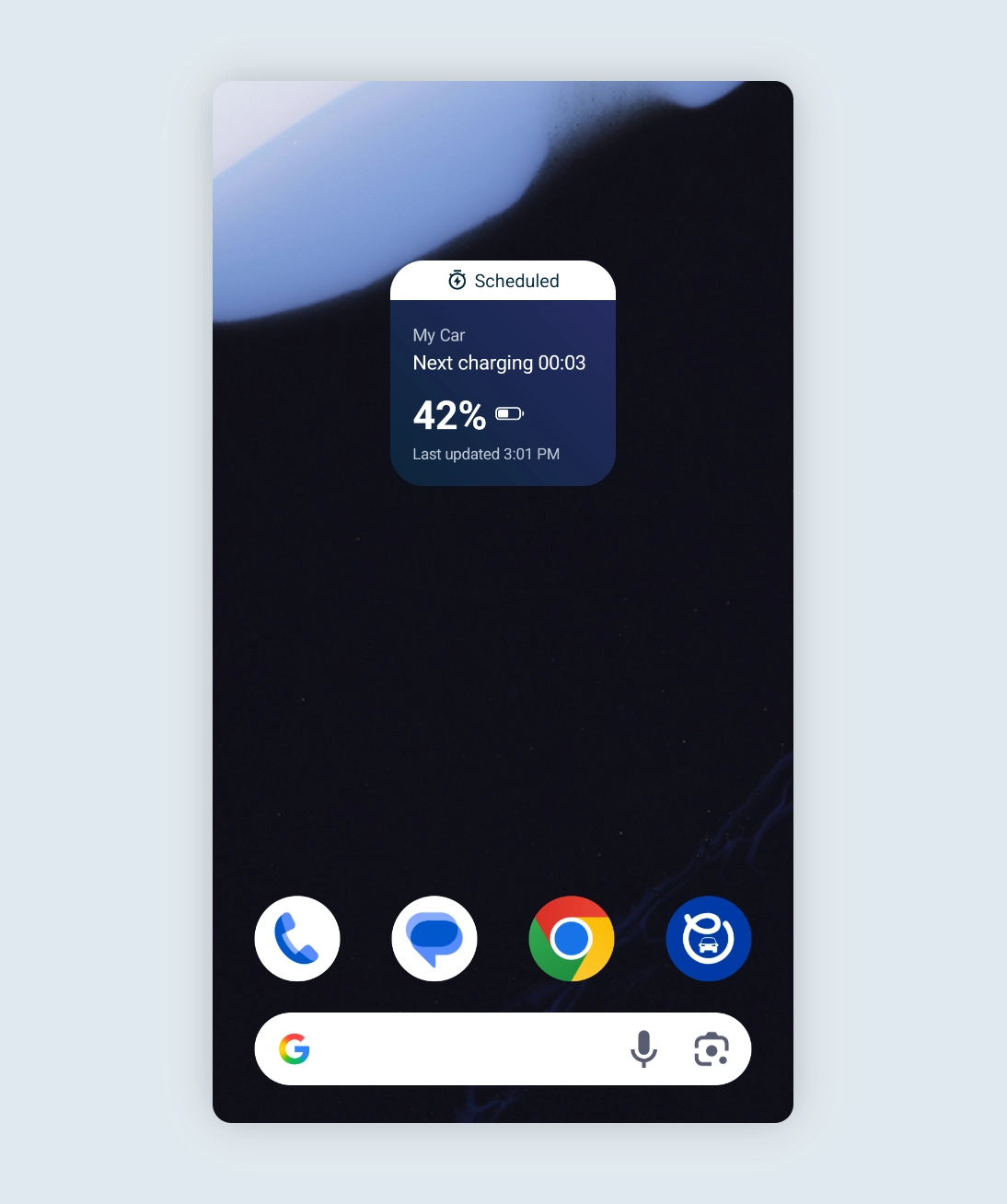
The Ohme app widget provides a unique way to see snapshots of key information about the status of your charger and charge session, right on your home screen, so you can check in at a glance without opening the app.
What you’ll see
• Your charger’s last known status, such as Unplugged, Pending approval, Charger offline, or Smart charging.
• Your active charge session, so you can keep track of progress.
• A timestamp, showing when the information was last updated.
How updates work
The widget will update instantly whenever you open the Ohme app or plug in your car to start a charge. The widget will also refresh periodically throughout the day and overnight. The update rate is determined by your phone’s battery settings. If background activity is limited or turned off, updates may be less frequent.
Adding the widget on Android
-
On your Home Screen, touch and hold an empty area.
-
Tap Widgets.
-
Type Ohme into the search bar.
-
Tap Ohme from the list. Tap the Ohme widget and tap Add.
-
Drag to where you want it on your Home Screen.
Troubleshooting updates
Most Android devices manage background activity automatically. If the Ohme widget isn’t updating it may be that background refresh has been turned off.
- Open the Settings app.
- Go to Apps > App battery usage > Ohme.
- Make sure Allow background usage is turned on.
Enabling these options ensures your widget keeps updating, even when the Ohme app hasn’t been used recently.
The widget offers many different views and statuses, here are a few you might see.
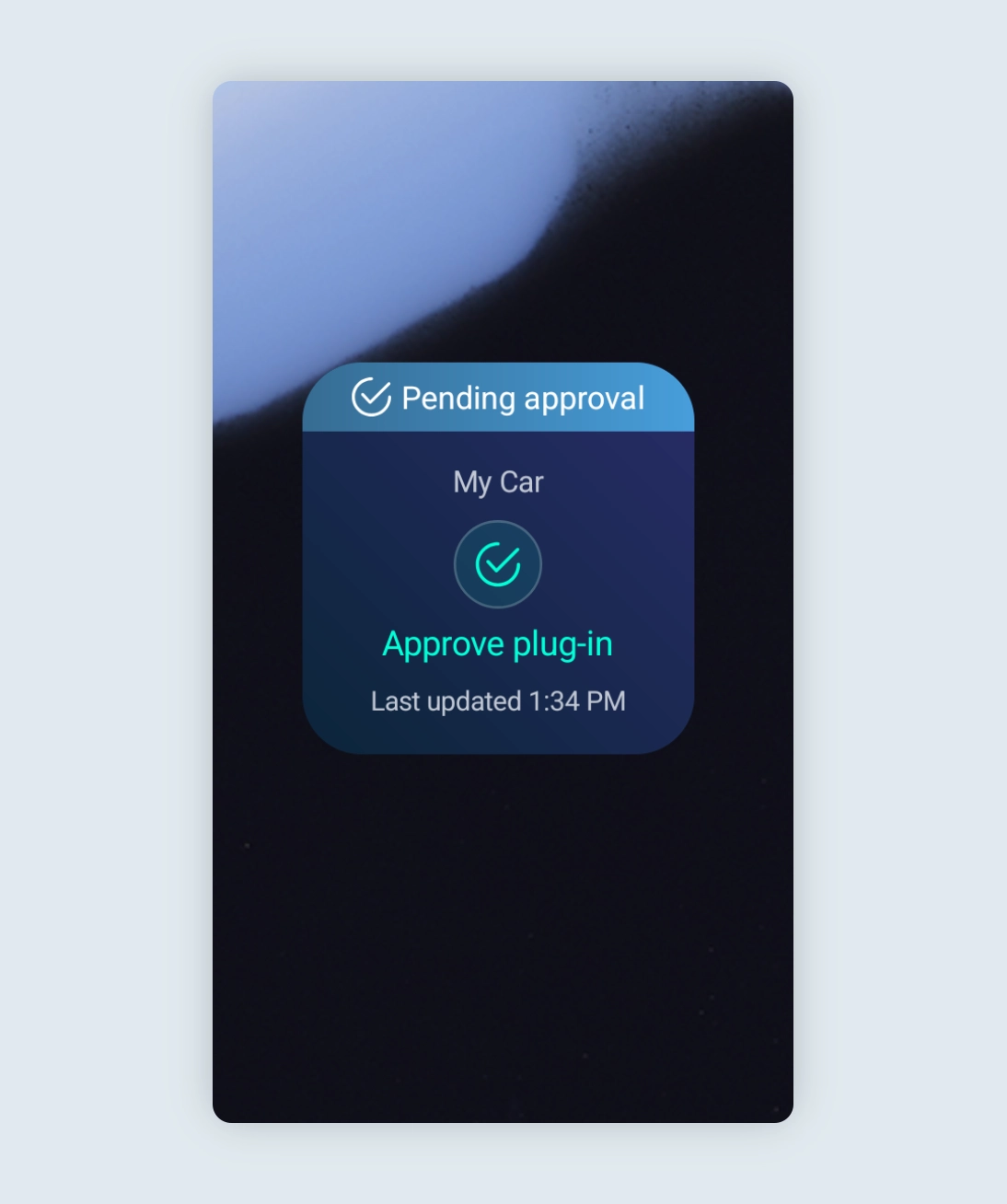
Approve plug-in
When Approve Plug in is on, you need to confirm each charging session in the Ohme app before it can start. This helps stop anyone you don’t trust from using your charger.
If a car is plugged in and waiting for approval, the Ohme widget will show an alert so you know action is needed. You’ll also get a push notification, as long as notifications are enabled in the Ohme app settings.
To begin charging, open the Ohme app and tap Approve plug in on the Charging page. More information about the security settings can be found in this article:
How can I keep my Ohme charger secure?
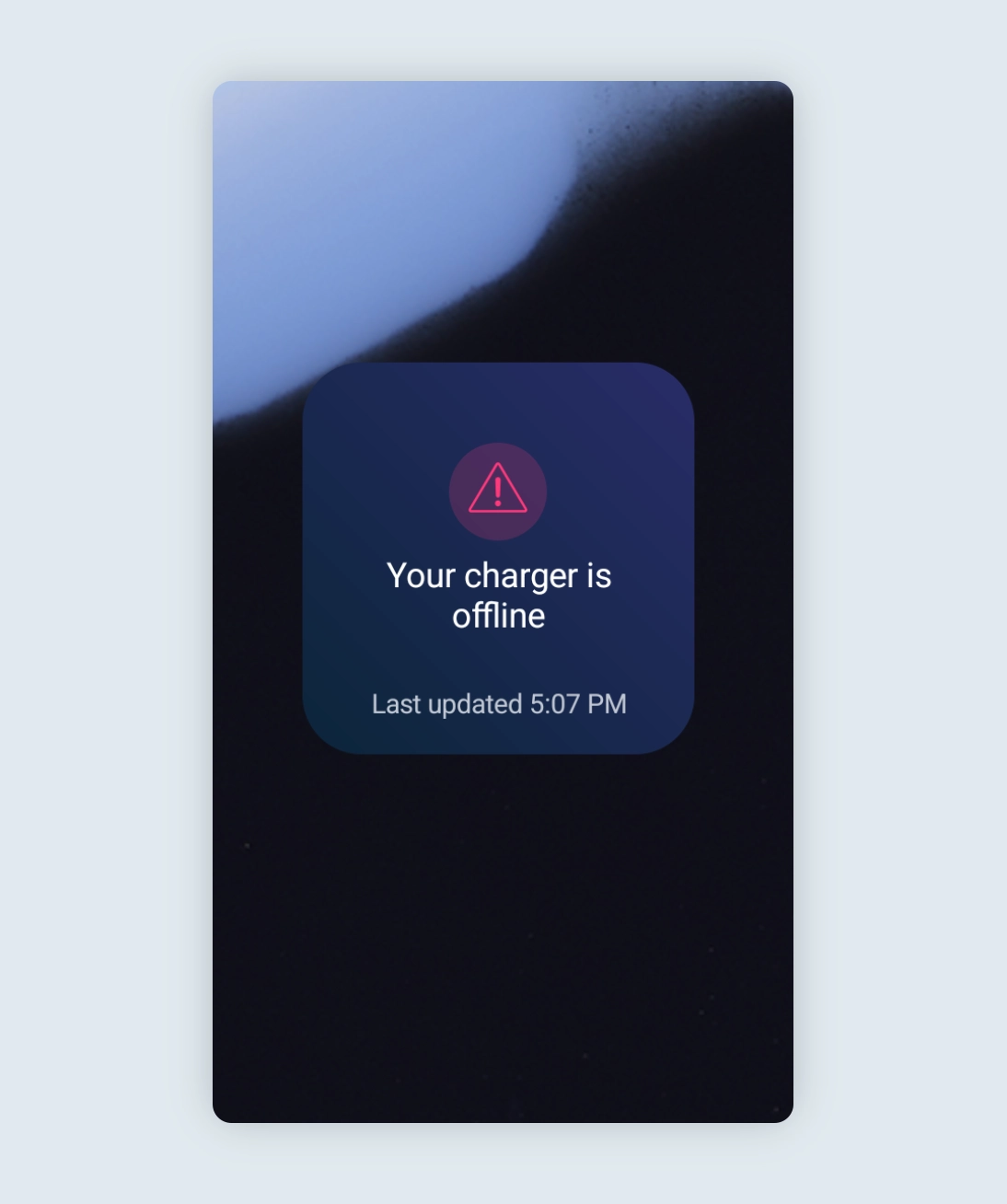
Your charging is offline
If your charger ever goes offline, the Ohme widget will show an alert to let you know. For your settings and preferences to apply correctly, your charger must be online before you plug in to charge.
Most of the time, your charger will automatically reconnect within about an hour. If it’s still offline when you’re ready to charge, we recommend power cycling the charger.
You can find step-by-step instructions in this article:
My charger is offline
Thanks for your feedback!


 Log a ticket